Insight Trackers
Insight Trackers use AI-driven analytics to automatically transform raw event data into actionable insights. Configure trackers in the dashboard to continuously monitor your application and surface meaningful patterns.
An Insight Tracker in Journium is a declarative configuration that tells Journium what to analyze and how often. It acts as a bridge between your raw Events and the Insights that help you understand your application's behavior.
What are Insight Trackers?
Insight Trackers are the core of Journium's Insights as Code approach. Instead of manually querying data or building dashboards, you define what you want to know about your application, and Journium's AI-driven analytics engine automatically analyzes your event data to generate concise, actionable insights.
Think of an Insight Tracker as a continuous data analyst that:
- Monitors specific events in your application
- Analyzes patterns, trends, and anomalies using AI
- Generates natural language insights explaining what's happening and why
- Runs automatically on a schedule or on-demand
How Insight Trackers Work
Insight Trackers transform raw telemetry data into human-readable insights through an AI-driven pipeline:
- Event Collection: The tracker focuses on specific events you've configured (e.g.,
purchase_started,user_signup,error_occurred) - Data Analysis: Journium's AI engine analyzes the event data, looking for patterns, correlations, anomalies, and trends
- Insight Generation: The AI synthesizes findings into concise, natural language insights (typically 1-3 sentences) backed by verifiable data
- Delivery: Insights are displayed in your Journium dashboard on the application instance's insights page Insights
This process eliminates the need for manual data exploration, SQL queries, or dashboard interpretation. The AI does the heavy lifting of data crunching and pattern finding, delivering insights that are both interesting and trustworthy.
You can list an application instance's insight trackers at Developers | Insight Trackers from your application instance page.
Creating an Insight Tracker
You create Insight Trackers directly in the Journium dashboard. You can create a new tracker for your application instance at Developers | Insight Trackers | Create New. Each tracker is configured as follows:
Status
Tracker Status can be Draft or Active. Flip the toggle switch to change the status. Scheduled execution won't be done on Draft trackers, but you can manually trigger an analysis.

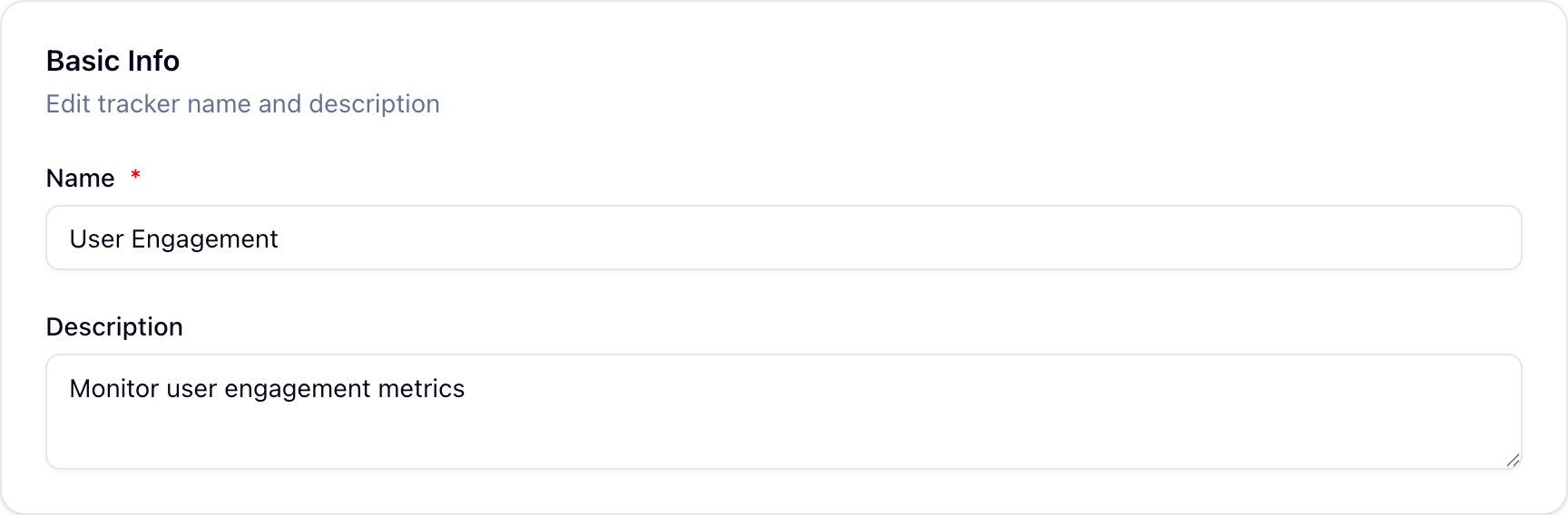
Basic Info
This section captures the Name and Description of the tracker. The name should be descriptive and identify what the tracker monitors (e.g., "User Engagement Tracker", "Purchase Funnel Analysis", "Error Rate Monitor"). The description provides a clear explanation of what the tracker analyzes and what insights you're looking for, helping the AI understand the context and focus of the analysis.
Configuration
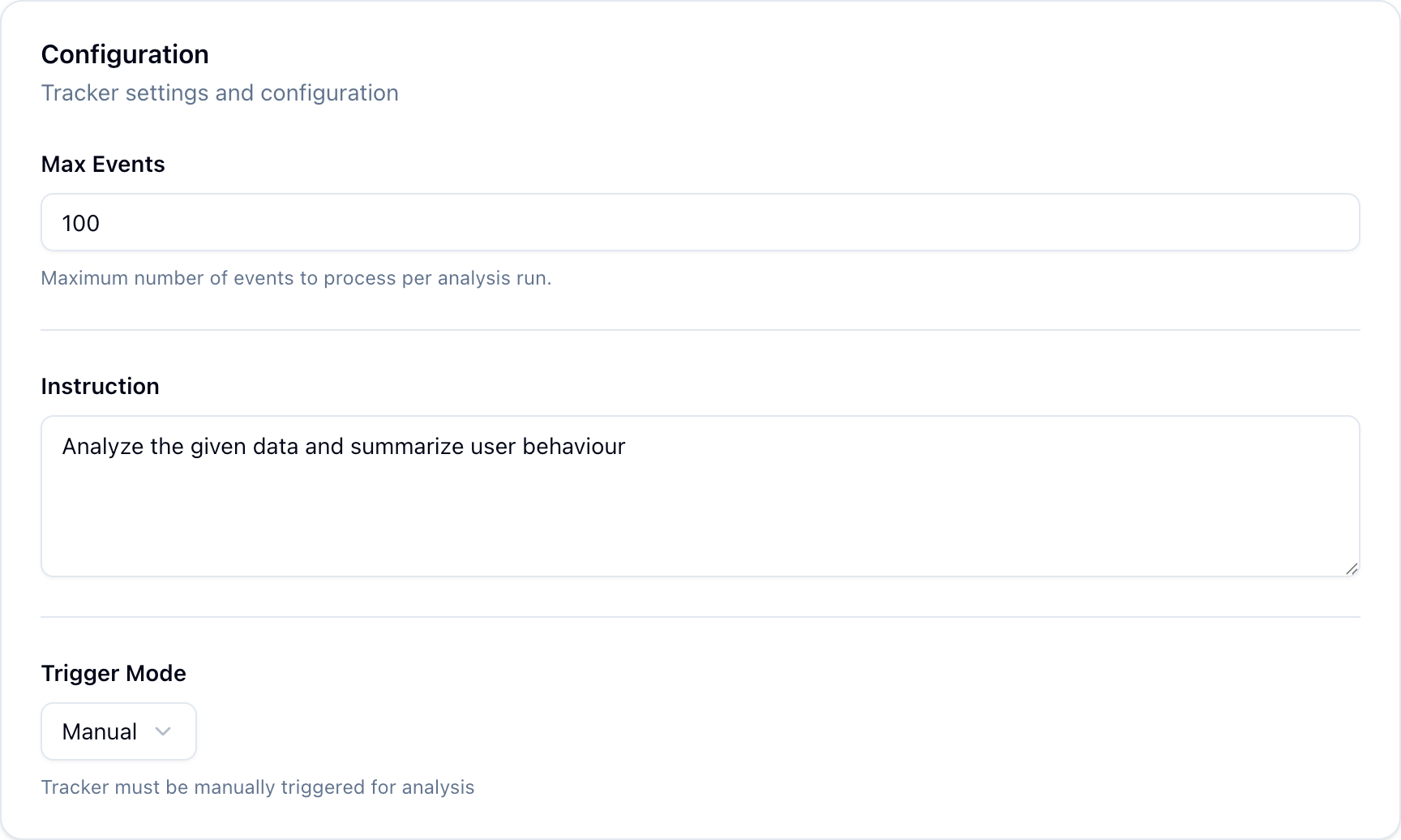
This section captures Max Events, Instruction, and Trigger Mode.
- Max Events: Set the maximum number of events to analyze
- Instruction: Provide specific instructions to guide the AI analysis
- Trigger Mode: Select from the dropdown - either Manual or Scheduled
- Manual: The tracker runs only when you explicitly trigger it from the dashboard. Useful for ad-hoc analysis or testing.
- Scheduled: The tracker runs automatically on a schedule. If scheduled, specify the schedule (e.g., daily, weekly, hourly). Ideal for continuous monitoring and proactive insight generation.
Events
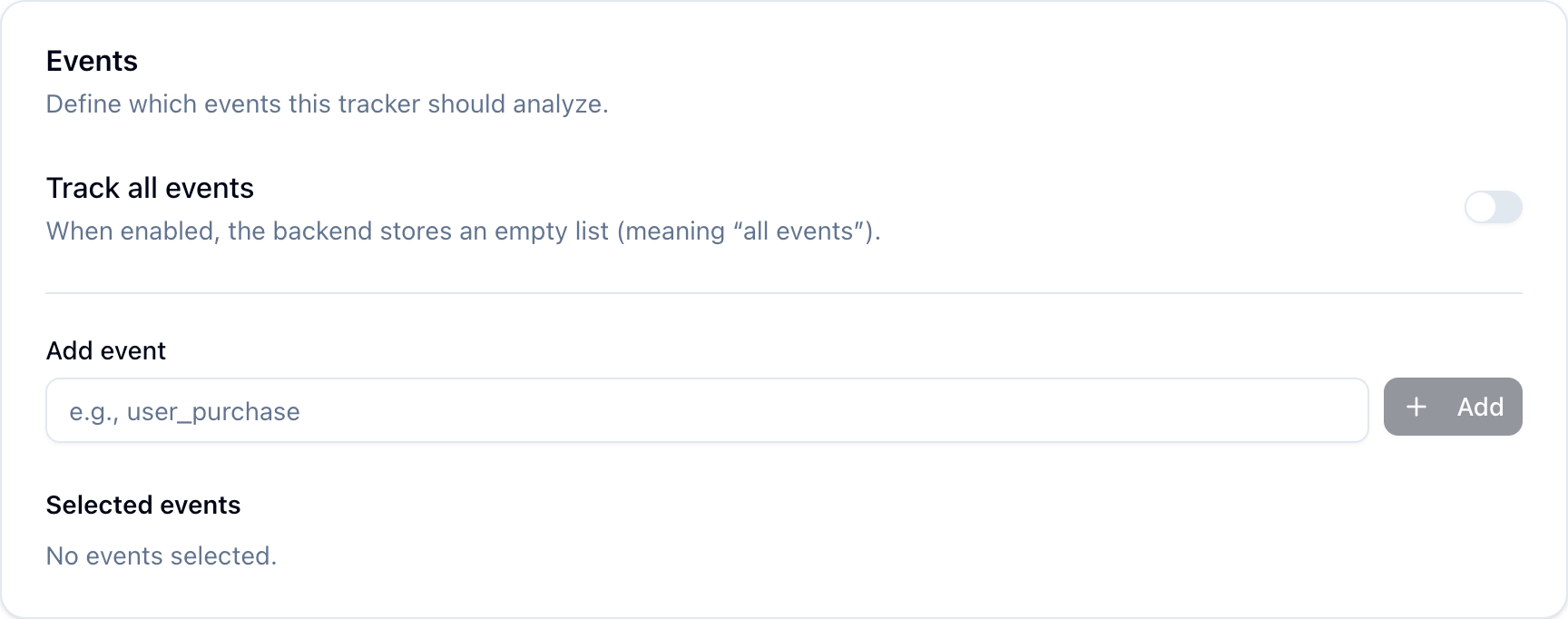
Either select all events using the toggle switch, or specify individual events to consider.
When selecting specific events, choose the event types you want the tracker to analyze
(e.g., only purchase_started and purchase_completed). The tracker will only analyze the
events you specify, allowing you to create focused trackers for different aspects of your application.
Use Cases
Insight Trackers are versatile and can be used for various analytics needs:
- User Behavior Analysis: Understand how users interact with your application, identify drop-off points, and discover usage patterns
- Feature Adoption: Track how new features are being used and identify barriers to adoption
- Error Monitoring: Detect spikes in errors, identify root causes, and understand impact
- Conversion Funnels: Analyze conversion rates and identify where users drop off in key flows
- Anomaly Detection: Automatically surface unusual patterns or significant changes in metrics
- Cohort Analysis: Understand how different user segments behave over time
Insight Output
When an Insight Tracker runs, it generates insights that are:
- Concise: Typically 1-3 sentences, making them easy to scan and understand
- Data-backed: Every claim is supported by verifiable data from your events
- Actionable: Insights explain not just what's happening, but often why it's happening
- Contextual: Insights consider the specific events and timeframes you've configured
These insights appear in your Journium dashboard, where you can view them, track their history, and see how they evolve over time.
Best Practices
When creating Insight Trackers:
- Be Specific: Focus each tracker on a particular question or area of interest rather than trying to analyze everything at once
- Choose Relevant Events: Select events that are meaningful for the insight you're seeking
- Use Descriptive Names: Name trackers clearly so team members understand what they monitor
- Set Appropriate Schedules: Use scheduled execution for trackers that need continuous monitoring, and manual execution for exploratory analysis
- Iterate: Start with broad trackers and refine them based on the insights you receive
Default Tracker: When you create an app in Journium, a default "User Engagement" tracker is automatically created. This tracker helps you test data ingestion and insight generation with your initial events.
Last updated on
Events
Events are single pieces of telemetry data that drive analytics and insights. Understand how to send custom events and configure auto-captured events.
Jobs
Jobs execute Insight Trackers to collect event data, analyze patterns, and generate insights. Learn about manual and automatic execution, job states, monitoring, and best practices.