Applications
Applications in Journium are containers for event tracking configuration, insight trackers, and app insights. Create and manage Development and Production instances.
What is an Application?
Applications in Journium map directly to user applications where tracking is enabled. They have a one-to-one mapping with user apps. A Journium app is not a physical app in the traditional sense but a container to hold all configuration and settings related to tracking events, configuring insight trackers, and viewing app insights.
How to Create Apps
Create Application
Go to your Journium dashboard. If you have no apps you will land at the app listing page. Click on the Create application button, give a name for your application, and click Create application.
Done
When you create an app in Journium, it creates a default Development instance. This is for quick testing.
App Instances
An app can have two types of instances: Development and Production. These instances are independent of each other in terms of their configuration. The production instance is what you should track for production purposes. All features are available in both instances. You can create a production instance after you test adequately event generation, trackers, and insights in the Development instance.
The instances can be switched in the instance selector in the dashboard. The API keys are different for the two instances.
Development Instance
The Development instance is created by default when you create an app in Journium. It has lower usage quotas that are suitable for local testing and development purposes.
Production Instance
The Production instance is what you should use for tracking in your production environment. You can create a production instance after you have adequately tested event generation, trackers, and insights in the Development instance.
Configuration
The configuration of an app is done in the Journium dashboard. You can configure the app by clicking on the app in the dashboard and then clicking on the Configure tab in the sidebar. You can provide the configuration parameters directly on the SDK configuration. If not specified, the configuration that you supply in the dashboard will be used. The configuration in the SDK takes precedence over the configuration in the dashboard. The following settings are available.
Event Capture settings
This section allows you to configure the event capture settings for the app.
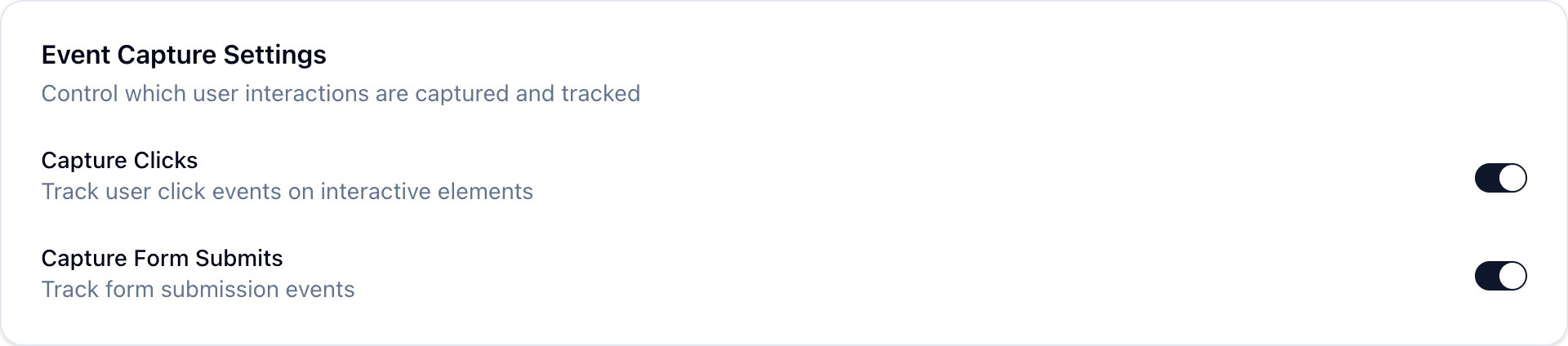
Capture Clicks
When enabled, Journium will capture clicks on the app. Enable or disable the toggle switch to capture clicks on the app.
Capture Form Submissions
Enable or disable the toggle switch to capture form submissions on the app.
Capture Form Changes
Enable or disable the toggle switch to capture form changes on the app.
Capture Page Views
Journium can capture page views automatically. Enable or disable the toggle switch to capture page views automatically.
Performance Settings
Configure event batching parameters.
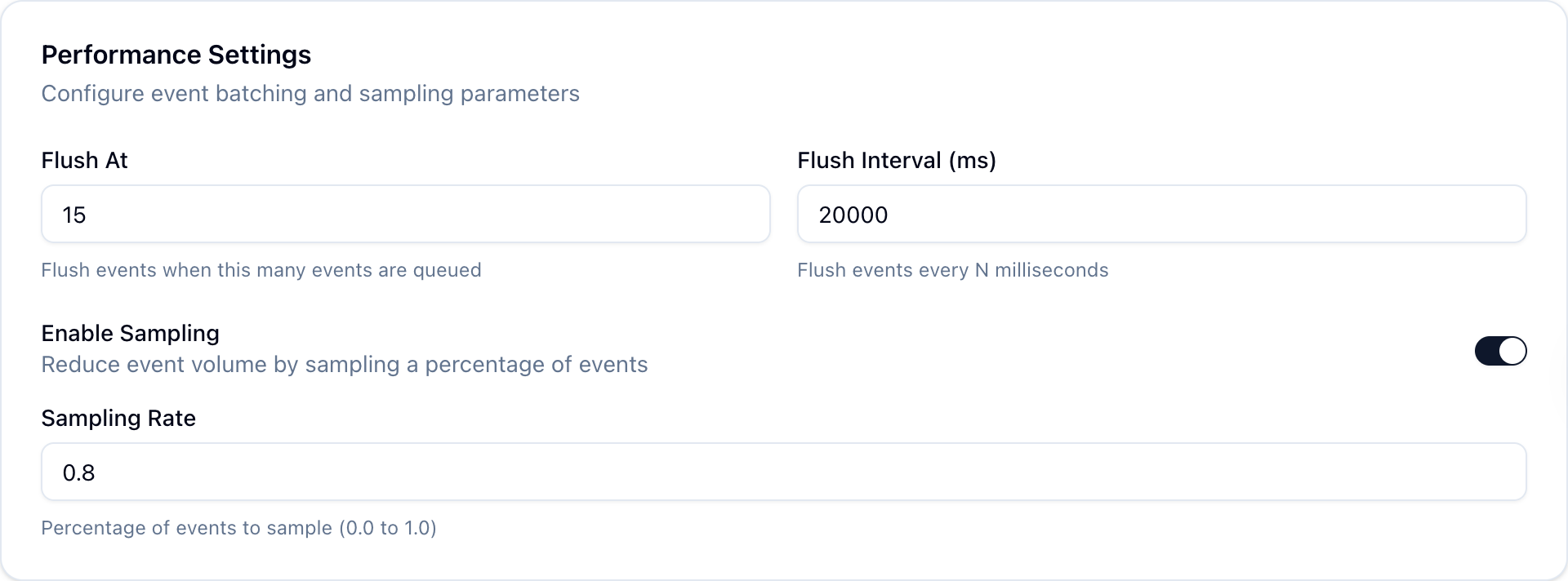
Flush At
Configure the number of events to accumulate before flushing to the Journium API.
Flush Interval (ms)
Configure the time interval in milliseconds between automatic flushes to the Journium API.
How is this guide?
Last updated on