Analysis Jobs
Jobs execute Insight Trackers to collect event data, analyze patterns, and generate insights. Learn about manual and automatic execution, job states, monitoring, and best practices.
An Analysis Job in Journium is an execution instance of an Insight Tracker. Jobs are responsible for collecting data, analyzing events, and generating insights based on the tracker's configuration. Each job execution represents a single run of the tracker's workflow, from data collection to insight generation.
What are Analysis Jobs?
Jobs are the automated processes that execute Insight Trackers. When a tracker runs—either manually triggered or automatically scheduled—it creates a job that carries out the entire analysis workflow. Jobs handle the heavy lifting of:
- Collecting relevant event data from your application
- Reviewing execution history to understand context
- Picking up and filtering relevant events based on the tracker configuration
- Executing the tracker's instructions step by step
- Generating insights when adequate data is available
Think of a Job as a single execution of your Insight Tracker's analysis pipeline. Each job represents one attempt to analyze your data and generate insights.
How Jobs Work
Jobs execute the Insight Tracker workflow in a series of steps:
Configuration Loading: The job picks up the configuration from its associated tracker, including event filters, instructions, and execution parameters
Data Collection: The job collects relevant events from your application based on the tracker's event selection criteria
Execution History Review: The job examines previous execution history to understand context and avoid redundant analysis
Event Processing: Relevant events are filtered and prepared for analysis according to the tracker's configuration
Instruction Execution: The tracker's instructions are executed step by step, analyzing the collected data
Insight Generation: If adequate data is available, insights are generated and stored. If insufficient data exists, the job completes as a no-op without generating insights
Job Execution Modes
Jobs can be triggered in two ways:
Manual Execution
Jobs can be manually triggered for any tracker from the dashboard. This is useful for:
- Testing tracker configurations during development
- Running ad-hoc analysis on demand
- Troubleshooting tracker behavior
- Validating tracker setup before enabling scheduled execution
To manually trigger a job, navigate to
Developers | Insight Trackers
and click the Analyze now button for the desired tracker.
Automatic Execution
When a tracker is configured with Scheduled trigger mode, jobs are automatically created and executed according to the defined schedule (e.g., daily, weekly, hourly). This enables continuous monitoring and proactive insight generation without manual intervention.
Viewing Jobs
You can view all jobs for your application instance at Developers | Jobs.
Jobs List
The jobs list provides an overview of all job executions, showing:
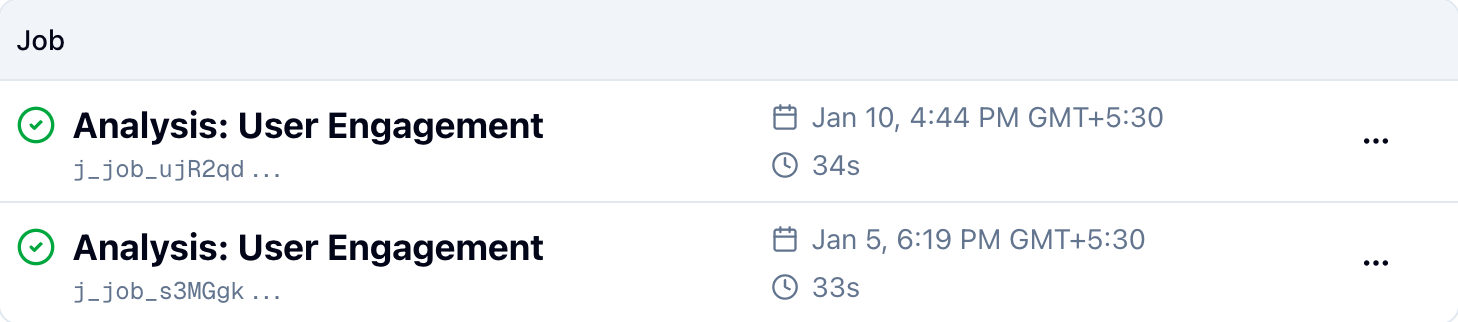
- Job Status: Whether the job is pending, running, completed, or failed
- Tracker: The Insight Tracker that triggered the job
- Execution Time: When the job was created and executed
- Duration: How long the job took to complete
- Result: Whether insights were generated or if it was a no-op
Job Details
Clicking on a specific job opens the job details page, which provides comprehensive information about the execution:
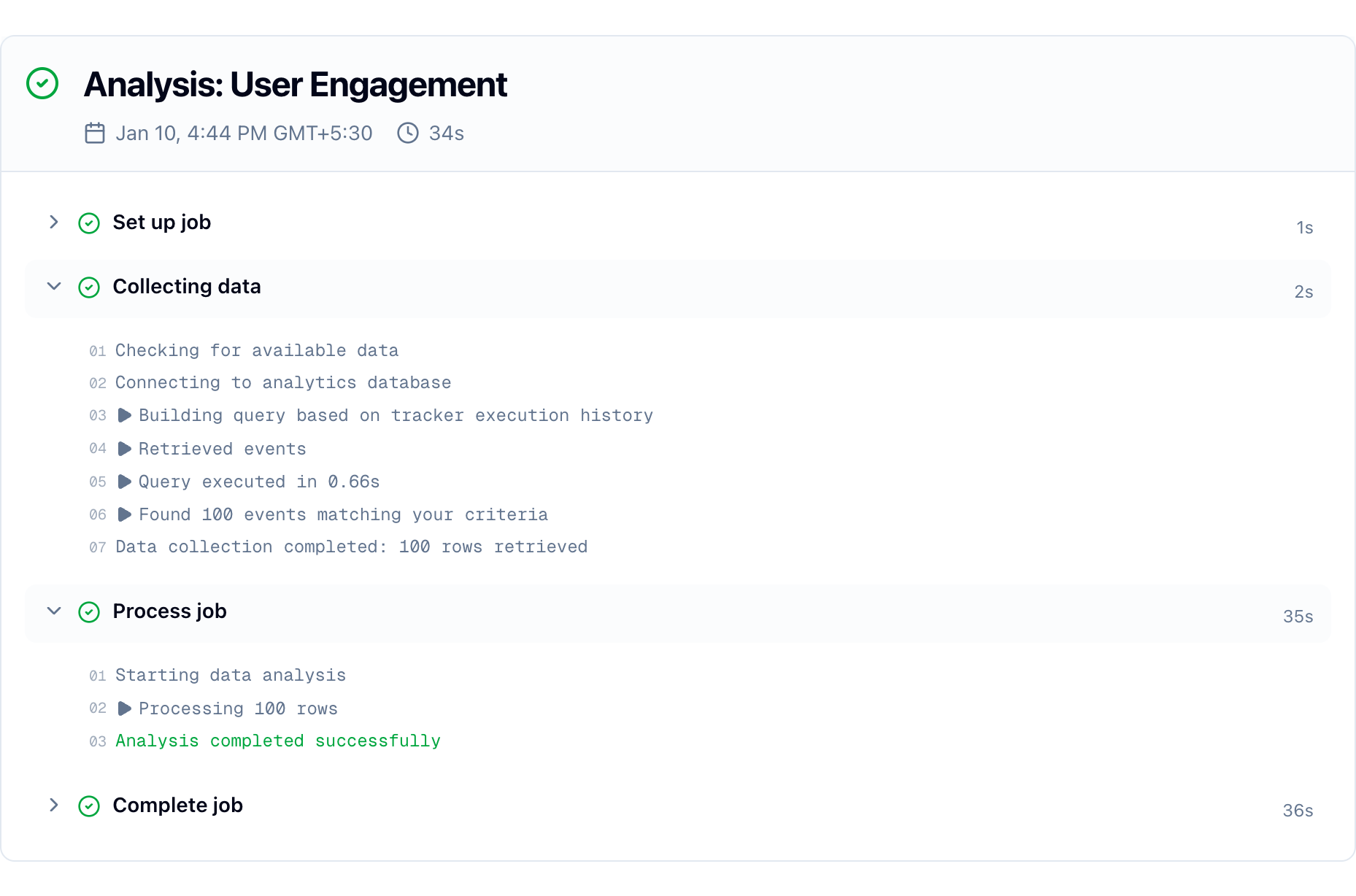
The job details page shows:
- Execution Steps: A breakdown of each step in the workflow execution
- Data Collected: Information about the events and data processed during execution
- Job Output: Detailed logs and output from each step of the execution
- Generated Insights: Any insights that were created as a result of this job
- Error Information: If the job failed, details about what went wrong
Monitoring Job Execution
Monitoring job output is particularly helpful during the process of developing trackers. The detailed execution logs help you:
- Troubleshoot Issues: Identify where in the workflow a problem occurred
- Validate Configuration: Verify that your tracker is collecting and processing the expected data
- Optimize Performance: Understand which steps take the most time
- Debug Logic: See exactly how your tracker's instructions are being executed
By reviewing job details, you can iteratively refine your tracker configuration to ensure it's working as expected and generating meaningful insights.
Job States
Jobs progress through several states during execution:
- Pending: The job has been created and is waiting to start execution
- Running: The job is currently executing the tracker workflow
- Completed: The job finished successfully (may or may not have generated insights)
- Failed: The job encountered an error during execution
- No-op: The job completed but didn't generate insights due to insufficient data
No-op Jobs
A job results in a no-op when there isn't adequate data available to execute the tracker's instructions meaningfully. This is a normal occurrence and doesn't indicate an error. Common reasons for no-op jobs include:
- Not enough events matching the tracker's event filters
- Insufficient data in the specified time window
- Events don't contain the necessary data points for analysis
No-op jobs are still valuable as they confirm your tracker is running correctly, even when there isn't enough data to generate insights yet.
Best Practices
When working with Jobs:
Monitor During Development: Regularly check job details when developing new trackers to ensure they're working as expected
Review Execution Logs: Use job output to understand how your tracker processes data and identify potential improvements
Check Job History: Review past job executions to understand patterns in data availability and insight generation
Use Manual Execution for Testing: Trigger jobs manually when testing tracker configurations before enabling scheduled execution
Understand No-ops: Don't be concerned about no-op jobs—they're normal when data is insufficient and indicate your tracker is running correctly
Job Monitoring: The job details page provides real-time updates during execution, making it easy to monitor long-running jobs and troubleshoot issues as they occur.
How is this guide?
Last updated on